 Daily Bible Verses
How to use Daily Bible Verses
From installing to setting up your daily reminder, in a few minutes.
1Install
Google Chrome
- Open Daily Bible Verses in the Chrome Web Store and choose Add to Chrome, then Add extension.
- Open a new tab. If Chrome asks whether you meant to change the new tab page, choose Keep it.
- To keep the open-book icon in your toolbar, click the puzzle-piece Extensions icon and pin Daily Bible Verses.
Microsoft Edge
- Open the same Chrome Web Store page in Edge.
- Edge shows a bar at the top: choose Allow extensions from other stores, then Allow.
- Choose Add to Chrome (the button keeps that name in Edge), then Add extension.
2Read the day's verse
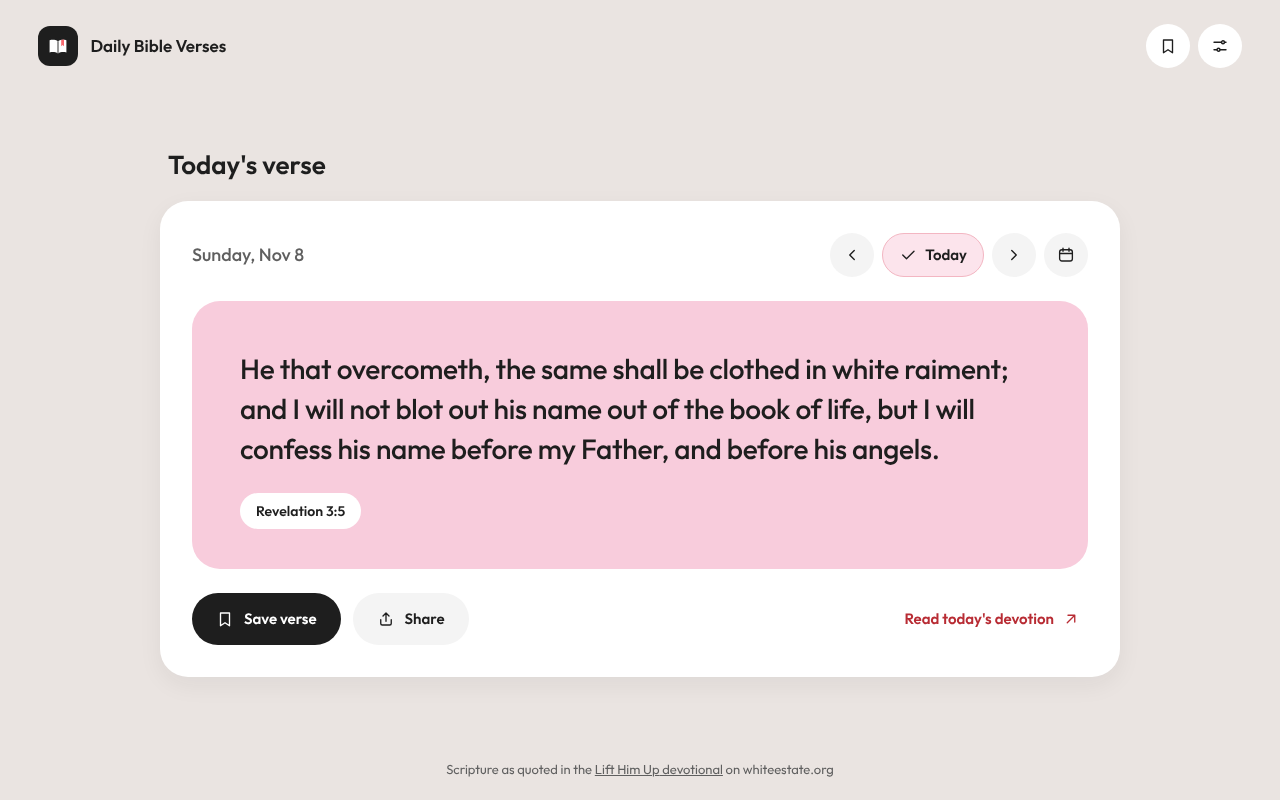
Every new tab shows Today's verse: the verse, its reference, and buttons to save, share or read the full devotion on whiteestate.org.
The same verse is in the toolbar popup. Click the open-book icon to see it without opening a tab.
3Move between days
- Use the ‹ and › buttons to go back or forward a day. The heading changes to Verse of the day when you're not on today.
- Back to today returns you to today's verse.
- On the new tab, the keyboard works too: ← and → move a day, T goes to today.
- The calendar button opens Go to a date. Roll the month and day wheels by scrolling, dragging, clicking a value or using the arrow keys, then choose Open.
February 29 doesn't have its own reading, so that day shows the verse for March 1.
4Save and share
- Save verse adds the verse to your Saved list. Press it again (it reads Saved) to remove it.
- Share copies the verse, its reference and the link to the devotion, ready to paste into a message or email.
- Open Saved verses from the bookmark button at the top right of the new tab, or from the popup. Each verse there can be copied again, opened on whiteestate.org, or removed.
If you're signed in to your browser with sync turned on, your saved verses appear on your other computers too.
5Set up the daily reminder
- Open Settings (the slider button at the top right of the new tab, or in the popup).
- Under Daily reminder, make sure Show a notification each day is on.
- Roll the hour and minute wheels to your time, then choose Save time. Nothing changes until you press it; Cancel puts the wheels back.
- Choose Send a test reminder to check that notifications appear.
The Daily reminder section also shows when the next reminder is due and when the last one was shown. If your computer was asleep or the browser was closed at reminder time, the reminder appears the next time the browser is open that day.
If the test reminder doesn't appear
Your computer has to allow your browser to show notifications:
Your browser also needs to be running at reminder time, even with no windows open.
6Choose a devotional
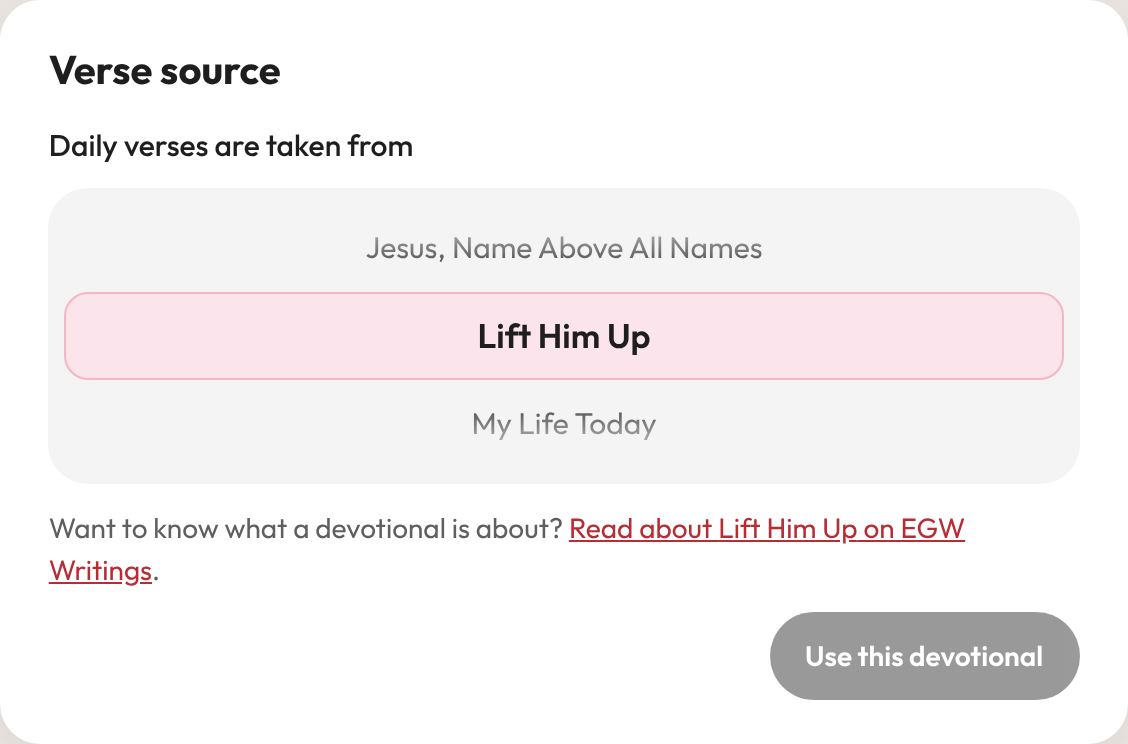
- In Settings, go to Verse source.
- Roll the wheel to a devotional. Use Read about … on EGW Writings to learn about it first.
- Choose Use this devotional. The new tab, popup and reminder switch to it straight away.
7Light or dark
In Settings → Appearance, choose Light, Dark or Match system. Match system follows your computer's setting and switches by itself.
8If something isn't working
"Couldn't load today's verse"
The verse comes from whiteestate.org, so this usually means you're offline or the site is busy. Check your connection and choose Retry, or open the day's devotion directly with Open on whiteestate.org. Days you've already viewed, and your saved verses, still work offline.
My new tab doesn't show the verse
Only one extension can replace the new tab page. If you have another one that does, turn it off in your browser's extensions page, or use the toolbar popup instead.
No reminder arrived
Check that the reminder is on and the time saved in Settings, then follow the notification steps in Set up the daily reminder.
Still stuck?
See the FAQ or get in touch.